What it’s for
The server stays on, keeps the messages and answers at an internet address where everything asks for the panel’s password, a sign-in or a key.
In Claude on the web and on your phone
And in ChatGPT. The tool opens a page on your server, you type the panel’s password and choose what it may do: everything, or read only.
In tools on other computers
Claude Code, Codex, a script or n8n on another machine come in through the same address, with a sign-in or with a key made in the panel.
The same panel, behind a password
You connect WhatsApp with the QR code in the browser, see the status and the chats and set up webhooks, as in the app.
Connections: every access in sight
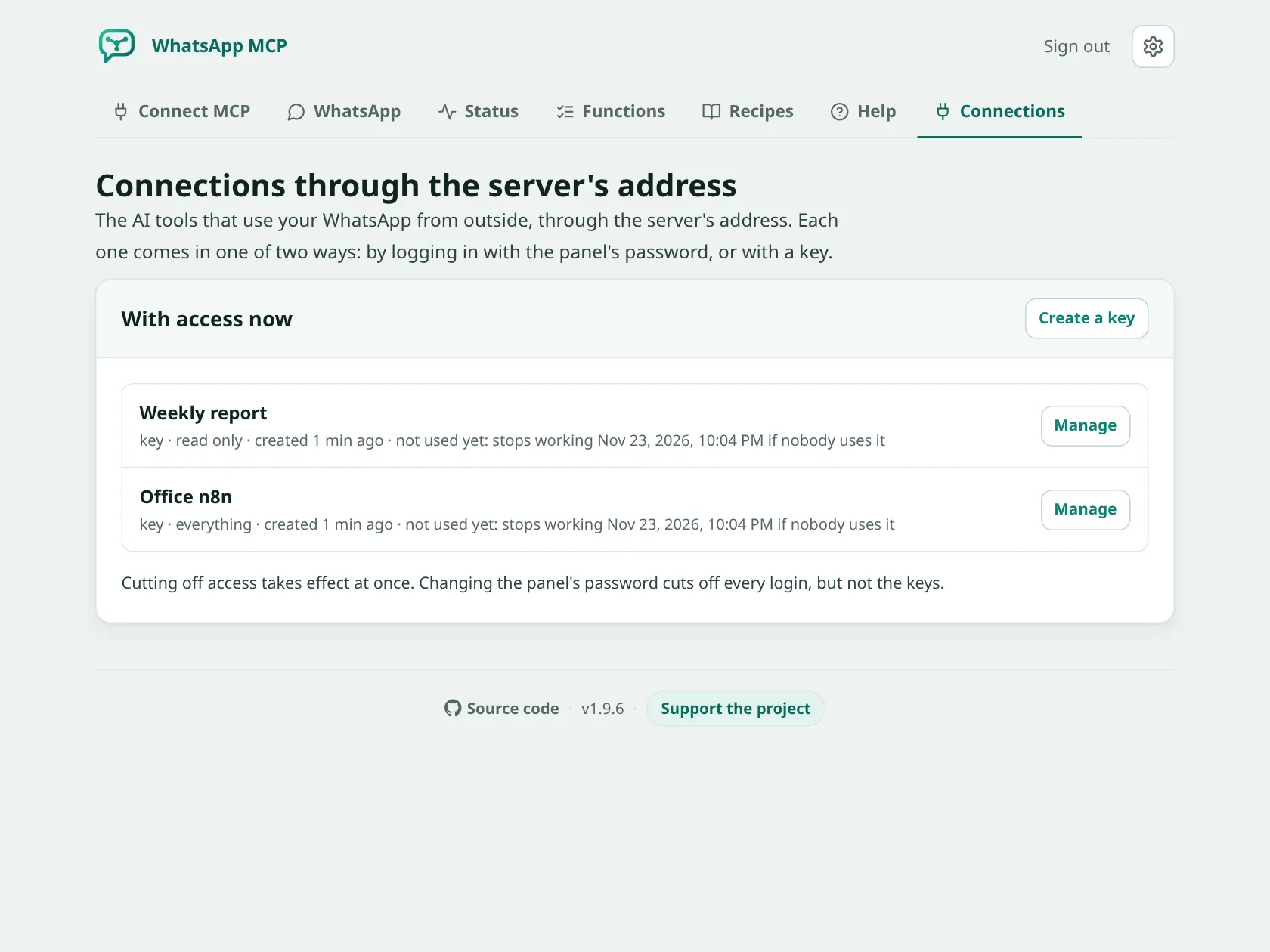
The panel lists every sign-in and every key, what it may do and when it was last used. Cutting off an access takes effect at once.
What you need
A Linux server that is always on
A computer at home, a mini PC or a VPS. An arm64 processor (such as the Raspberry Pi 4 and 5) or an amd64 one with AVX2.
An https address
The app never talks to the internet directly: a program in front of it does the https. The installer offers Tailscale Funnel (no domain and no open port), a Cloudflare tunnel, Caddy (with a domain and ports 80 and 443 open) or a proxy you already have.
A long, random password
It’s what protects your chats on the internet. Use one made by a password manager, 16 characters or more.
Your phone with WhatsApp
To scan the QR code, as with WhatsApp Web.
How to install
From the server’s terminal. The full guide (in Portuguese) covers every https option, the unattended install and troubleshooting.
-
With Docker
On a server with Docker installed:
curl -fsSL https://raw.githubusercontent.com/BrOrlandi/whatsapp-mcp-local/main/install-docker.sh -o install-docker.sh
bash install-docker.sh
The installer asks for the install folder, the public address, how https arrives and the panel’s password, twice. The password never shows on screen or goes into any file: only a hash of it is kept. Then it downloads the image, starts everything and says what to do next.
-
Or without Docker
For a server where you trust every account:
curl -fsSL https://raw.githubusercontent.com/BrOrlandi/whatsapp-mcp-local/main/install.sh | bash
whatsapp-mcp server setup
server setupasks for the public address and the panel’s password and starts answering on the public port too, which you point your https at (the server’s Caddy or nginx, Tailscale or cloudflared). -
Open the address and connect
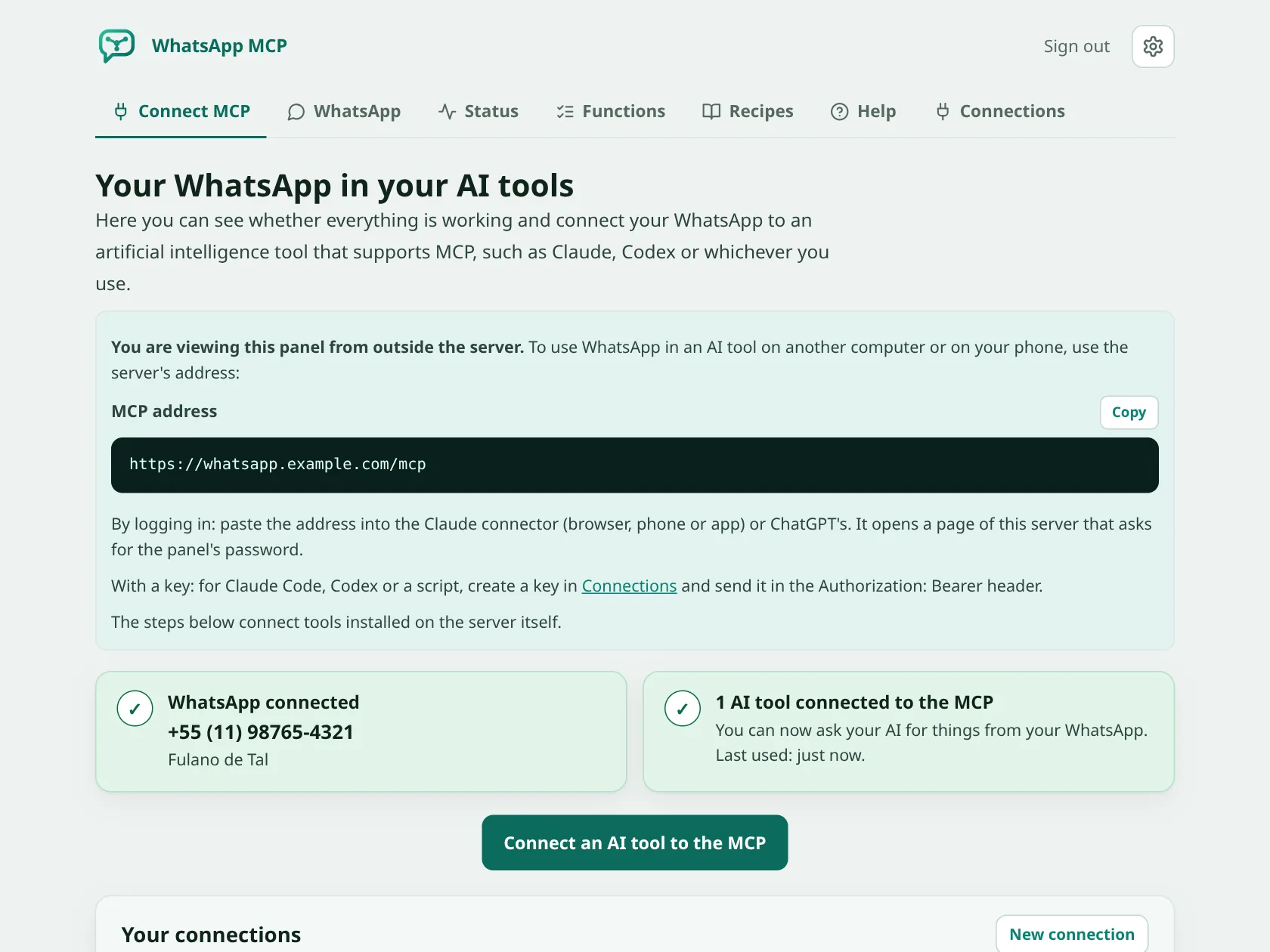
Sign in with the password, scan the QR code with your phone and copy the MCP address, which the panel shows under Connect MCP. Paste that address into the AI tool: it comes in with a sign-in, using the password, or with a key made under Connections.
In the server’s panel
Your part as the one who installs it
Whoever gets into the server gets into your WhatsApp
The WhatsApp session, the messages and the keys live on the server. Anyone with access to its system (an account on the server, the provider’s console, a backup) has access to your WhatsApp. Without Docker, any account on the server reaches it without a password through the local port; on a server shared with other people, prefer Docker.
The https is yours
The app never answers the internet directly or handles certificates. The program in front of it does the https, and you keep that program running and up to date.
Backups
With Docker, everything that matters is in one volume: the session, the messages, the keys and the sign-ins. Keep the backup as you would a password: whoever has it has your WhatsApp.
Updating is up to you
The panel says when a new version is out and shows the command for your kind of install. You run the update, on the server.
Use at your own risk
WhatsApp has no official API for personal accounts, and the account may be disconnected or restricted. Use a server that has never run WhatsApp automations: an internet address with that history can get the number banned.
Rather run it on your computer?
The app for macOS, Windows and Linux has no server to look after: messages stay on your machine and arrive while it’s on. It works with the AI tools installed on it, such as Claude Desktop, Claude Code, Codex and Cursor.
Still on the old version, with the Evolution API? See the migration guide.