See how it works
From download to your first conversation with your AI, in one minute. It’s narrated: turn the sound on.
Three steps, no terminal
-
Download and open the app
There’s a version for macOS, Windows and Linux. On a Mac, drag it to Applications; on Windows, run the installer.
-
Scan the QR code with your phone
In WhatsApp, go to Linked devices and point the camera at the code. If you prefer, ask for a code to type on your phone instead.
-
Connect your AI tool
One click connects Claude Desktop (chat and Cowork) or Claude Code. For Codex, Cursor and other tools that support MCP, the app gives you ready-made text to paste.
Today in your WhatsApp:
- Family: Sunday lunch at Grandma’s, at 1 pm. Someone still needs to bring drinks.
- Lucas Almeida: confirmed Thursday’s meeting and will send the link.
- Building: the water will be off tomorrow from 9 to 12.
Two chats are waiting for your reply: Lucas and Mom.
Inside the app
The real screens, with sample data: from the QR code to the settings.
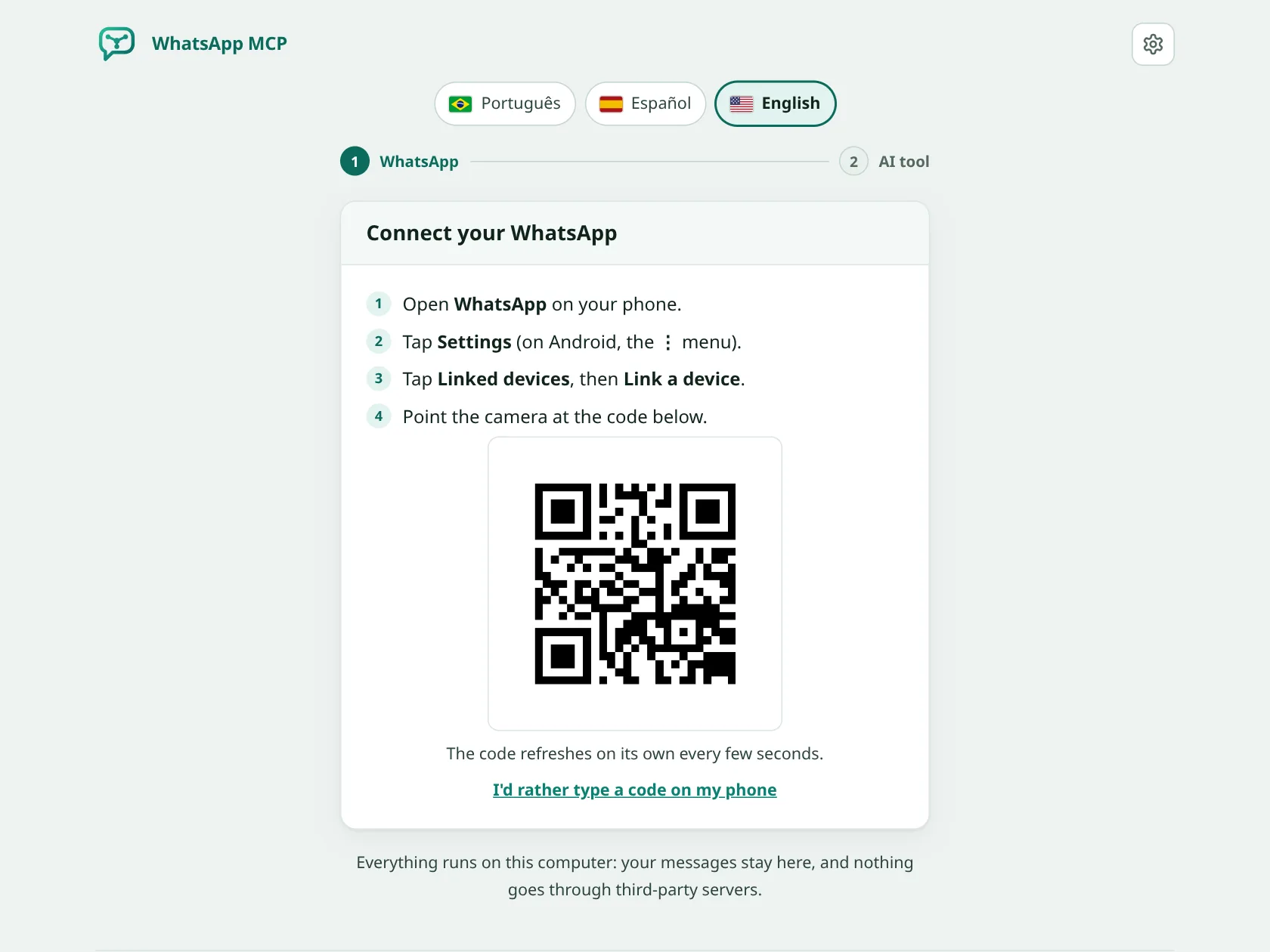
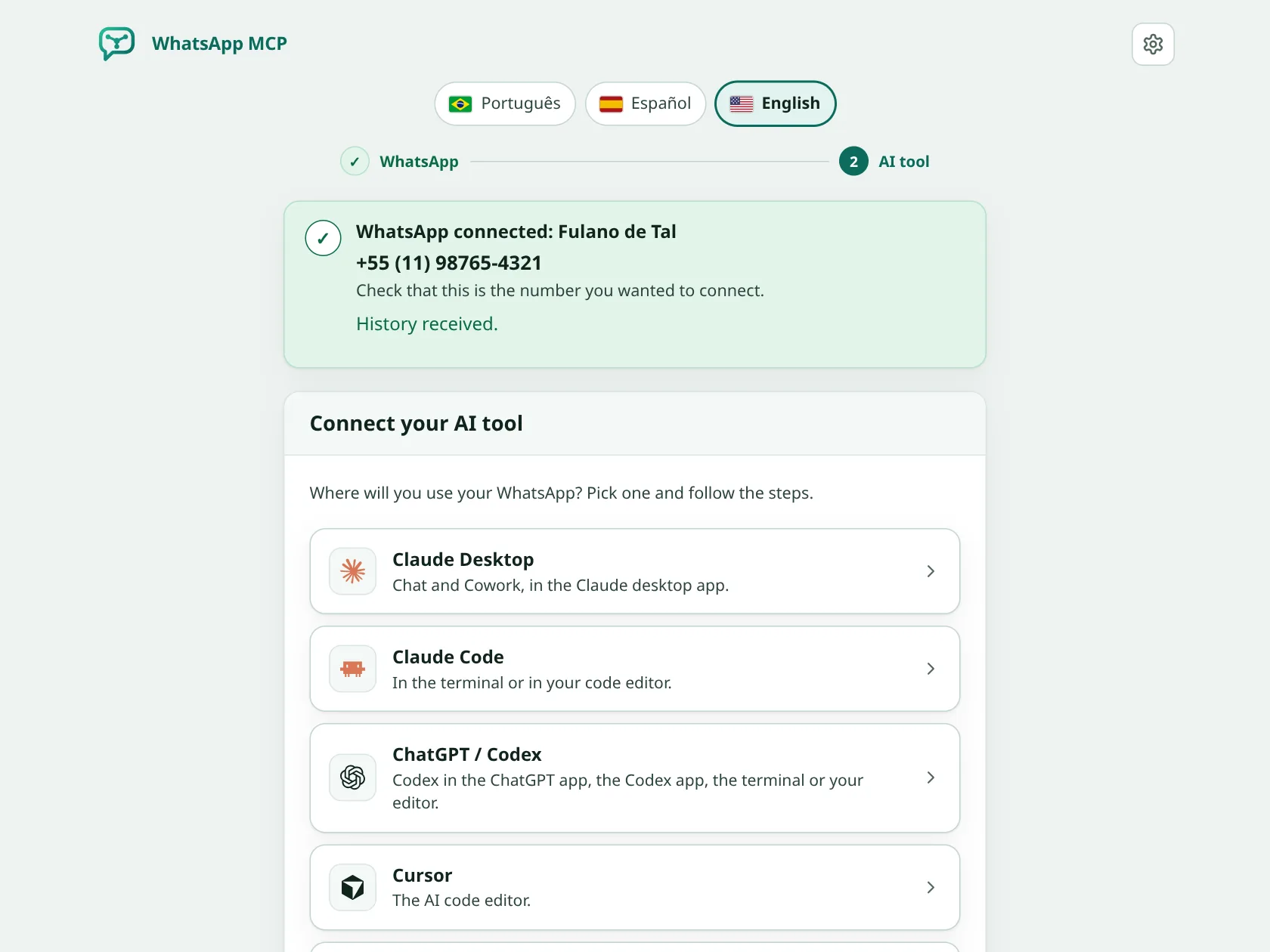
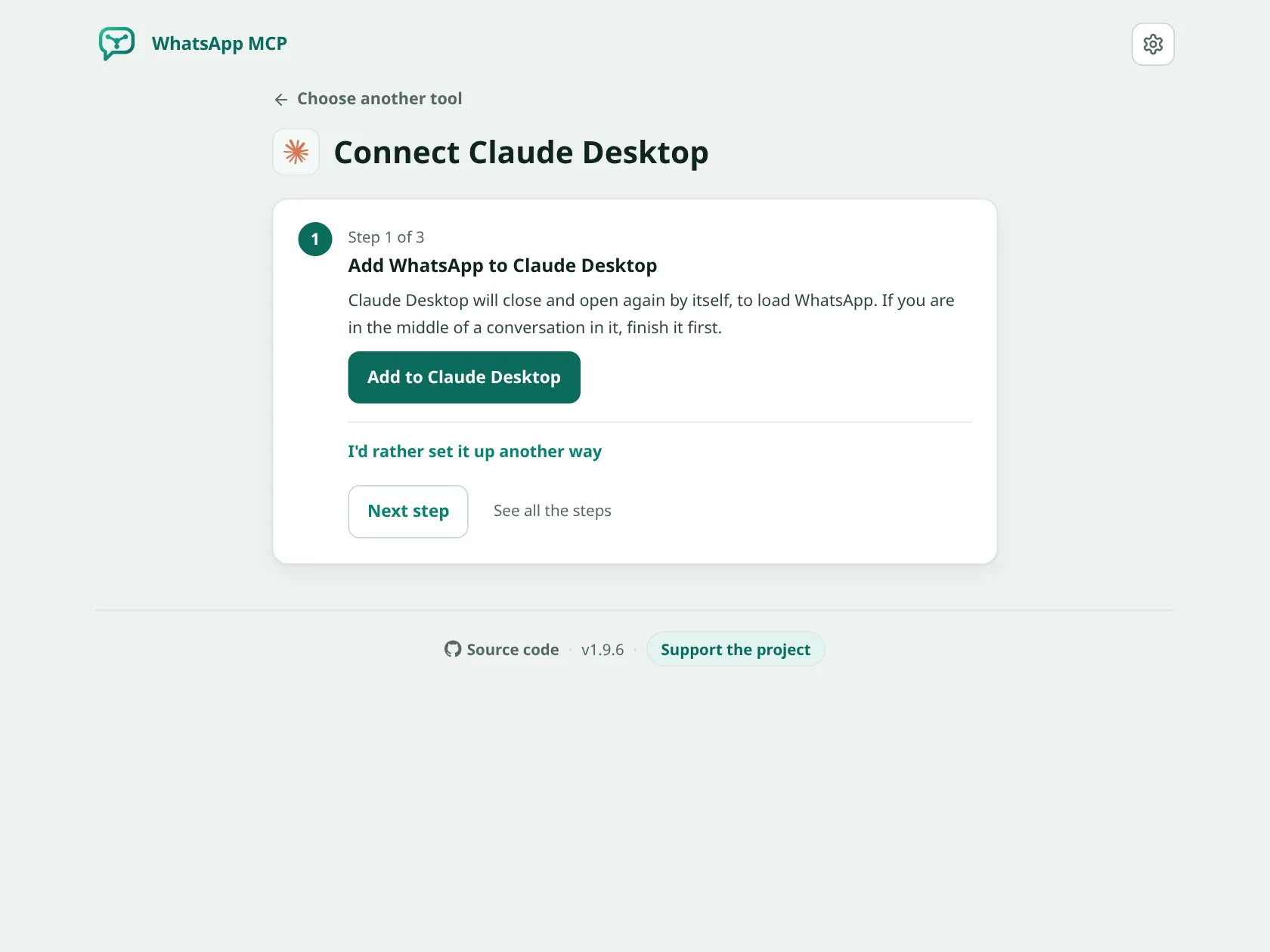
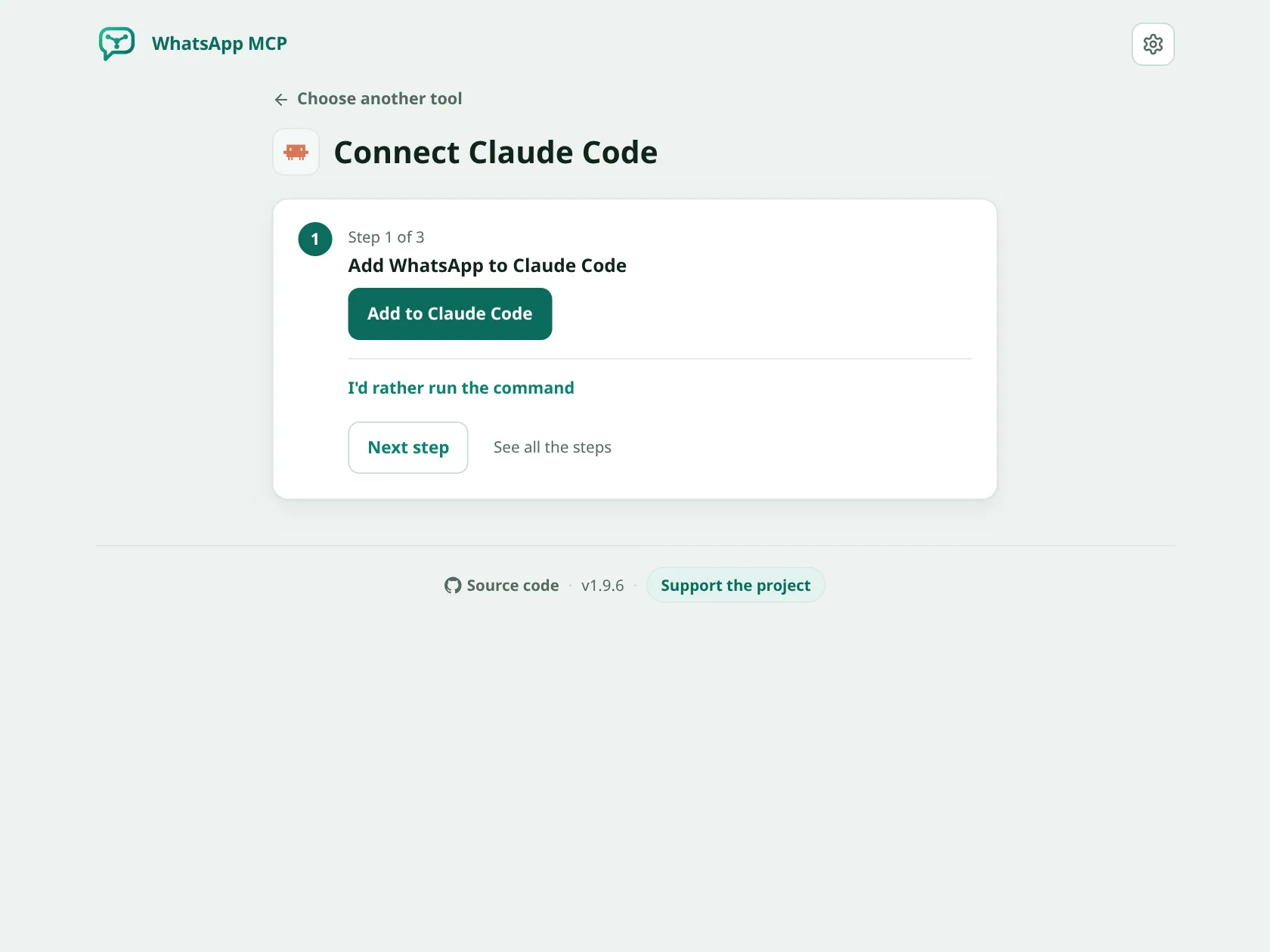
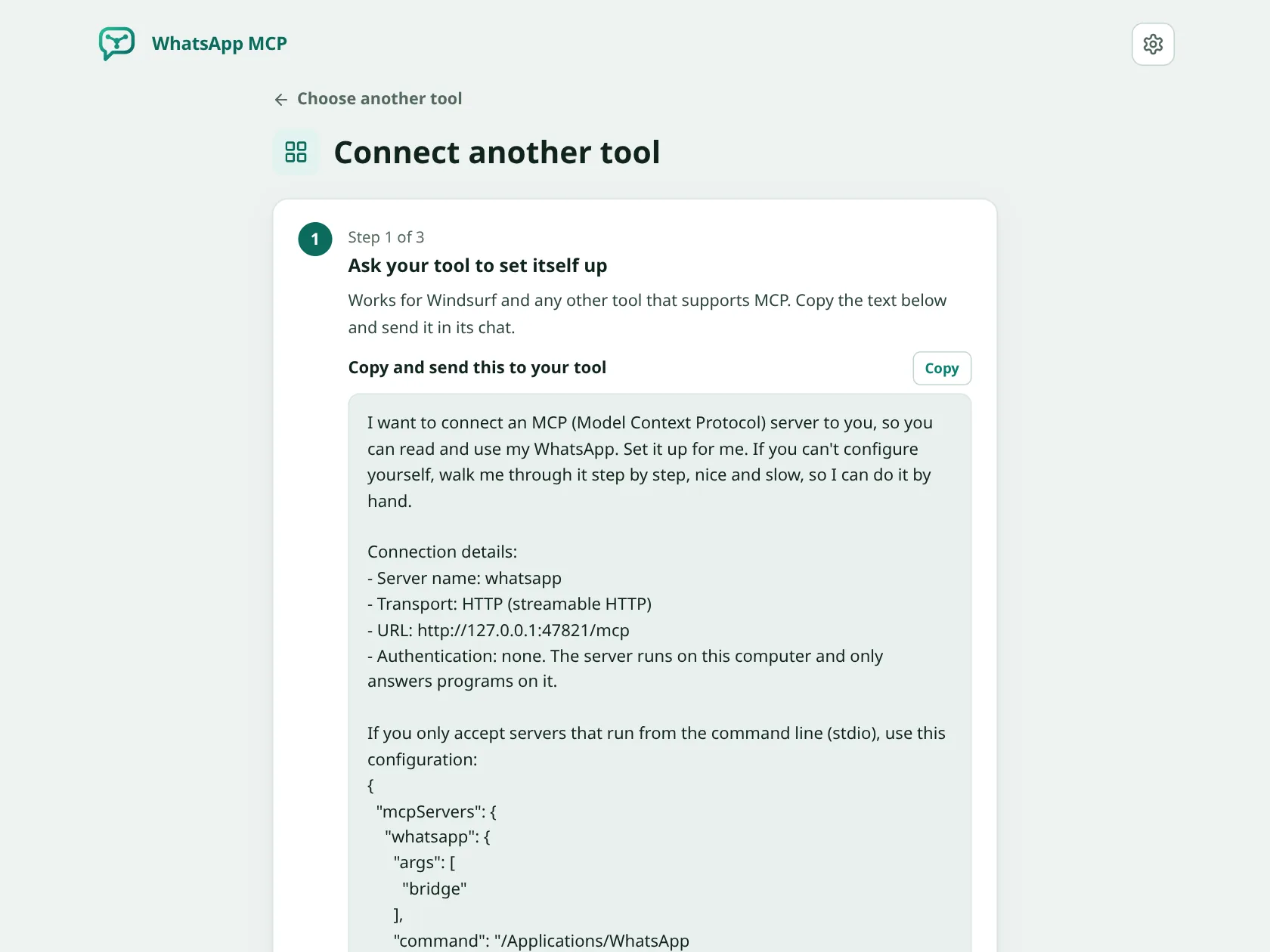
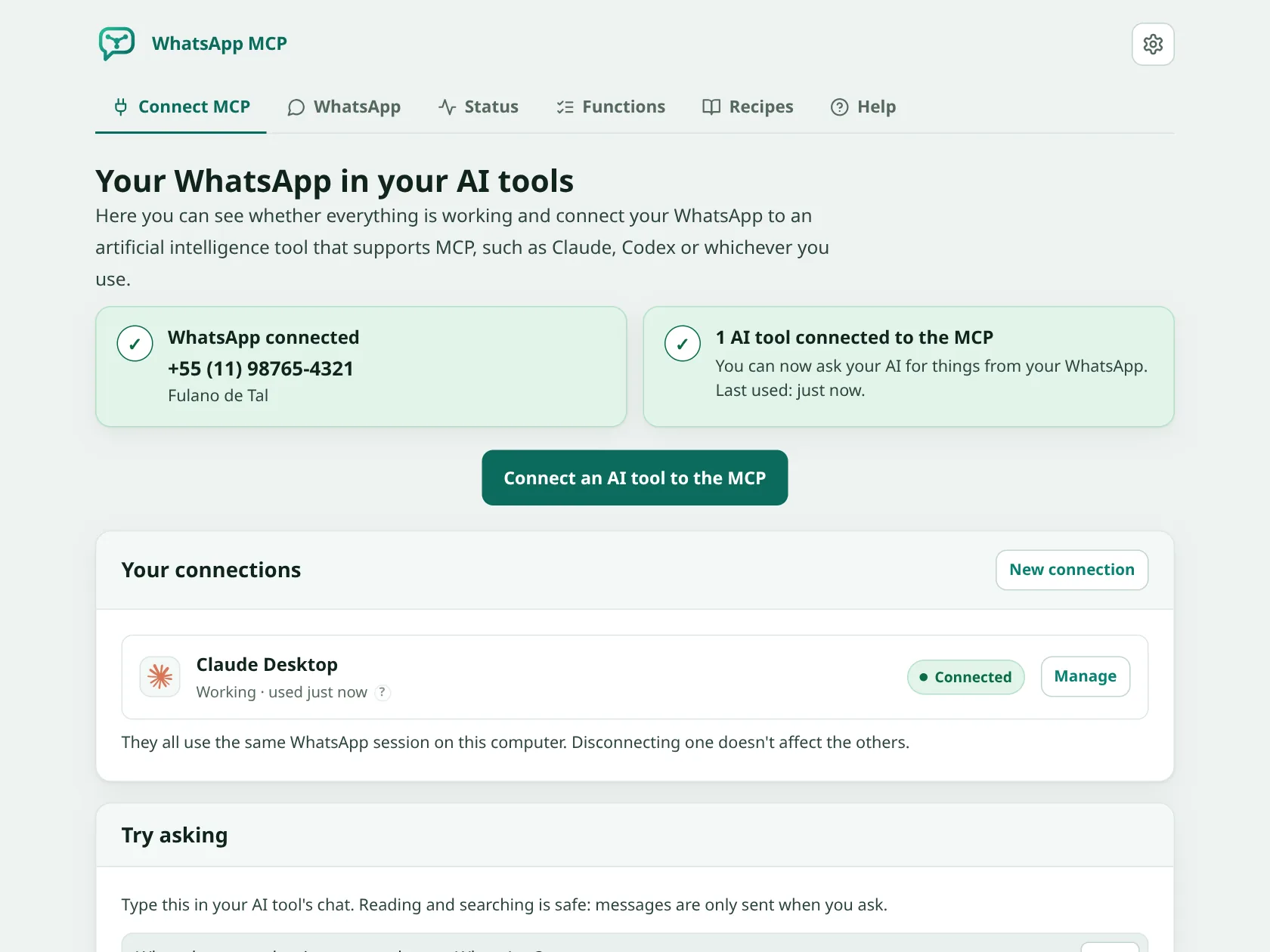
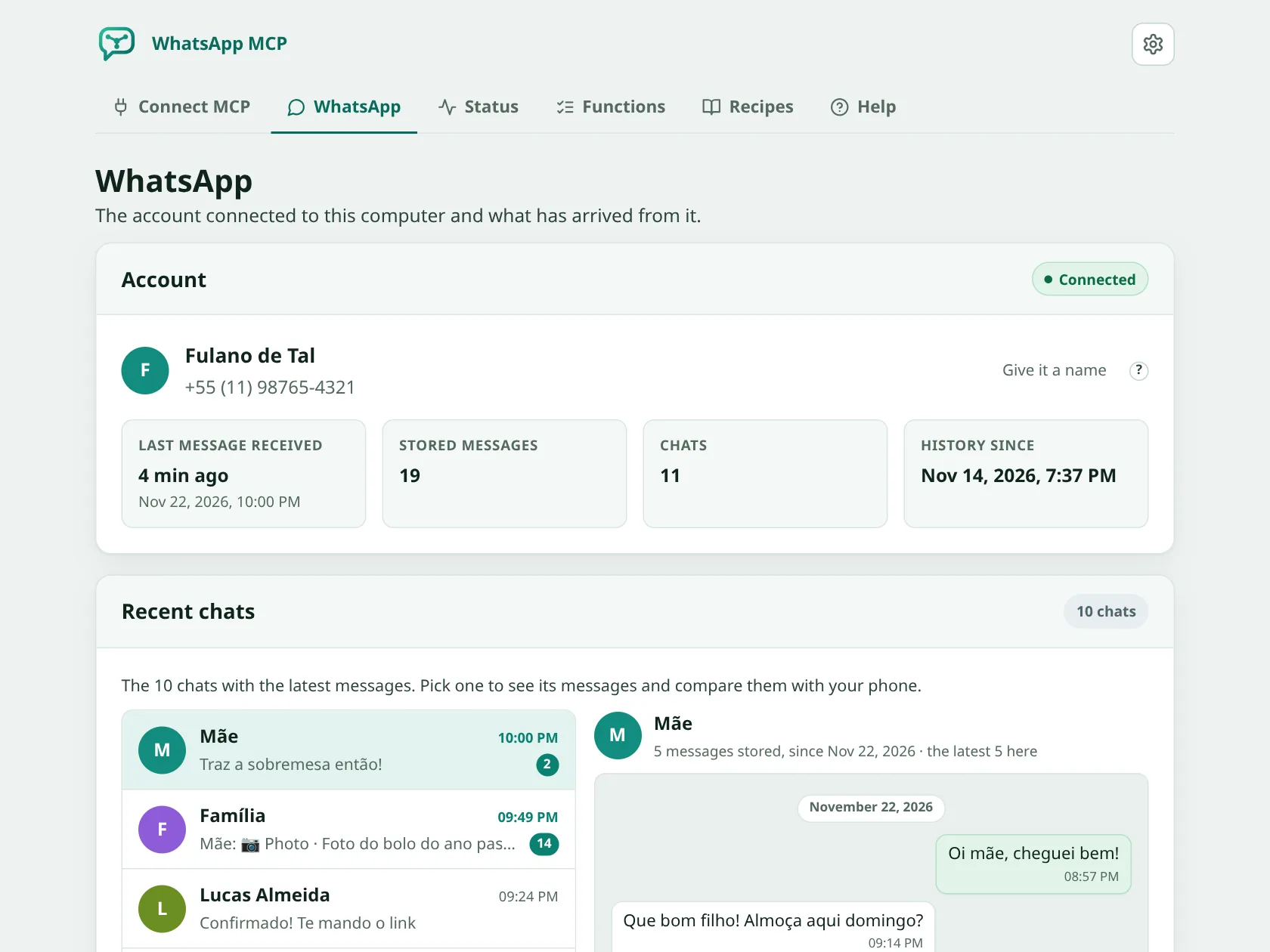
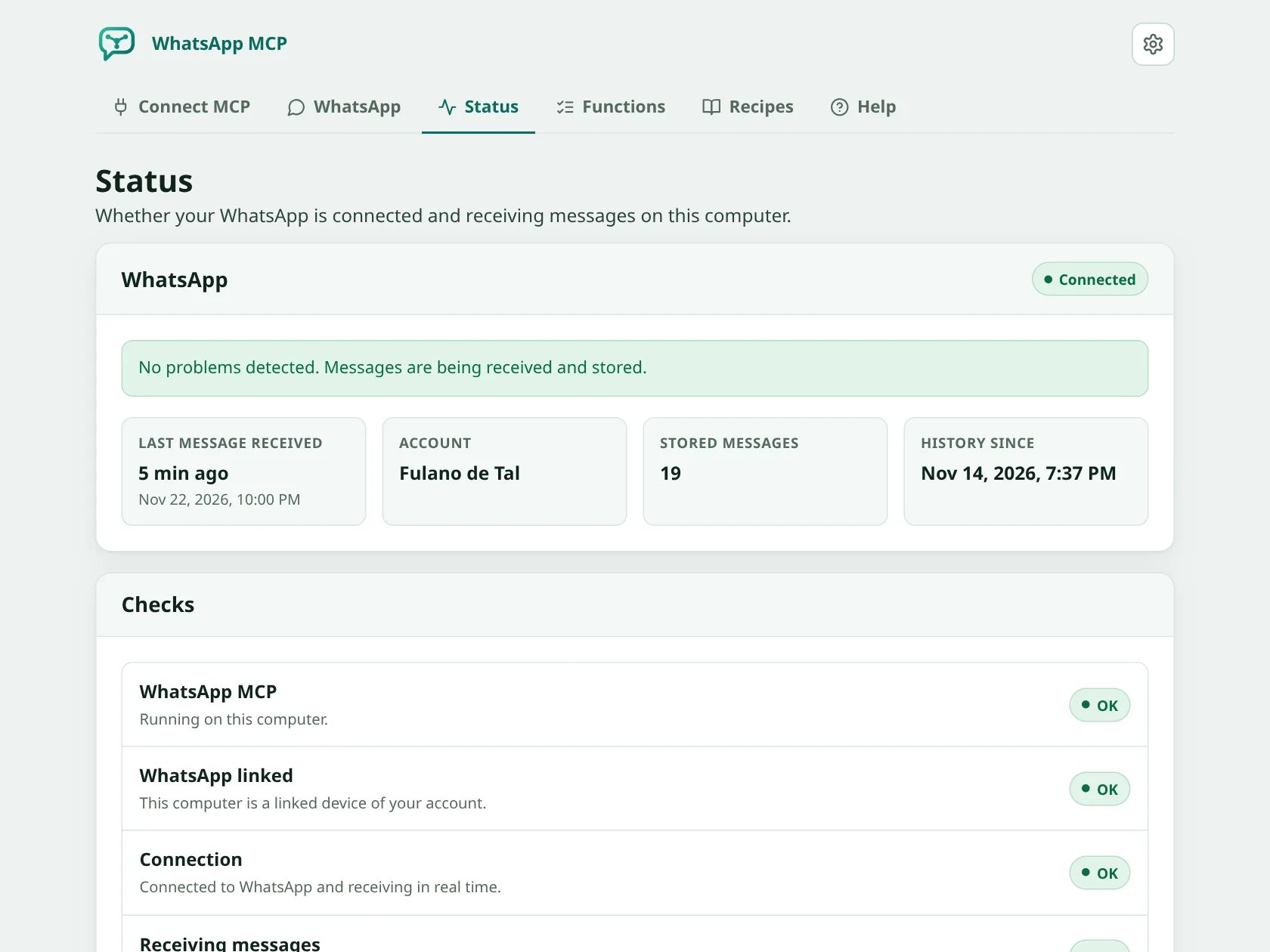
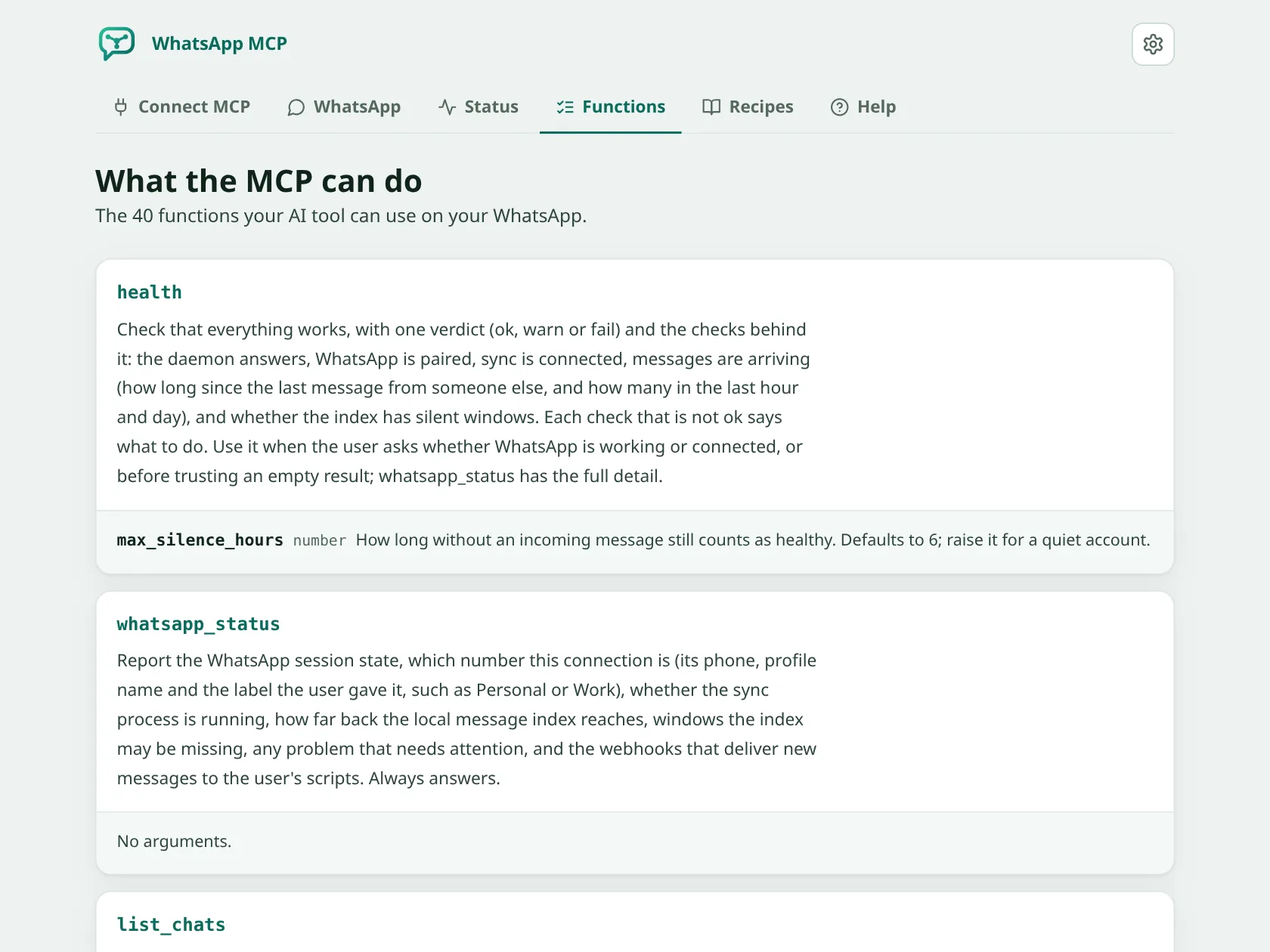
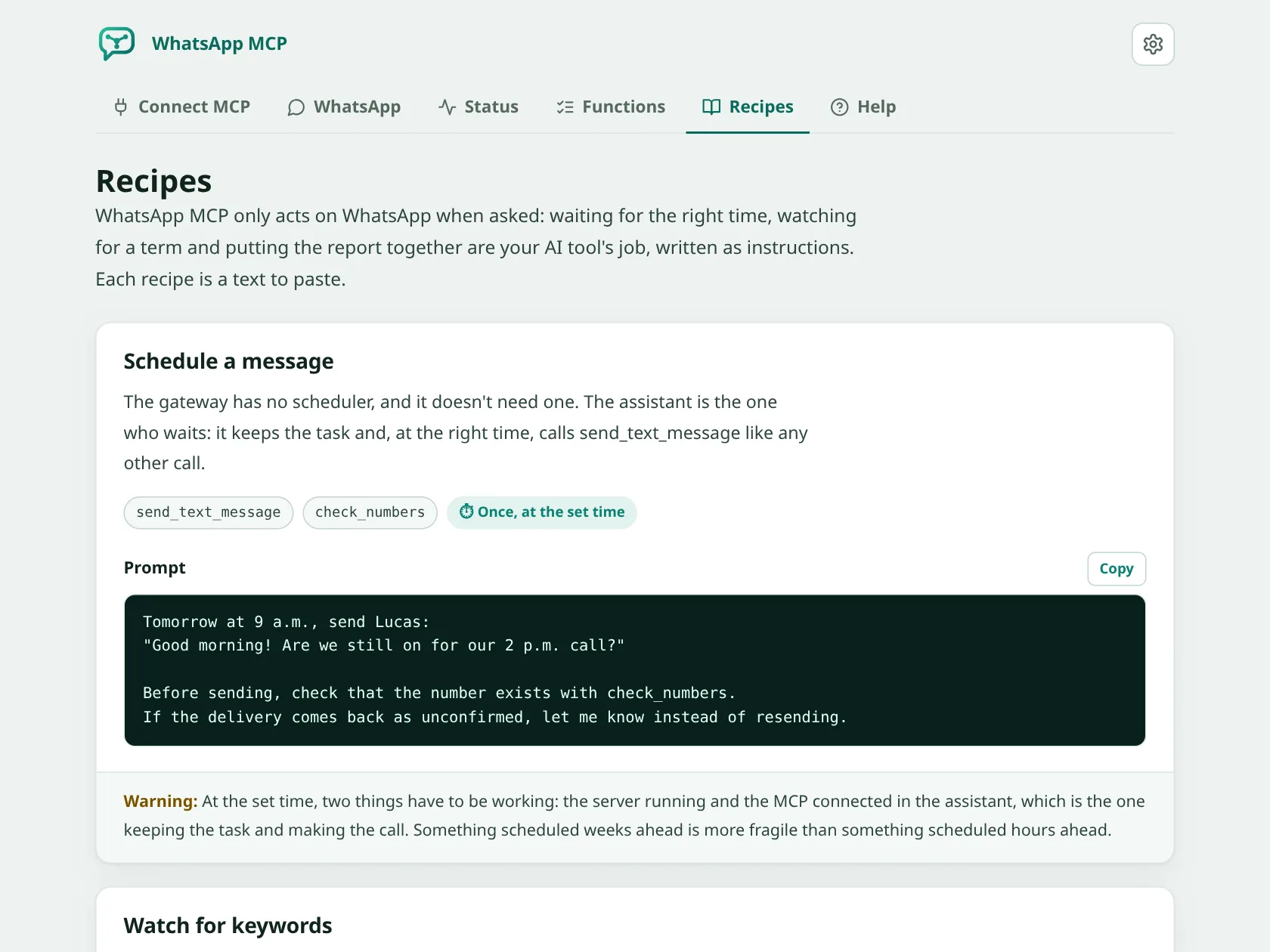
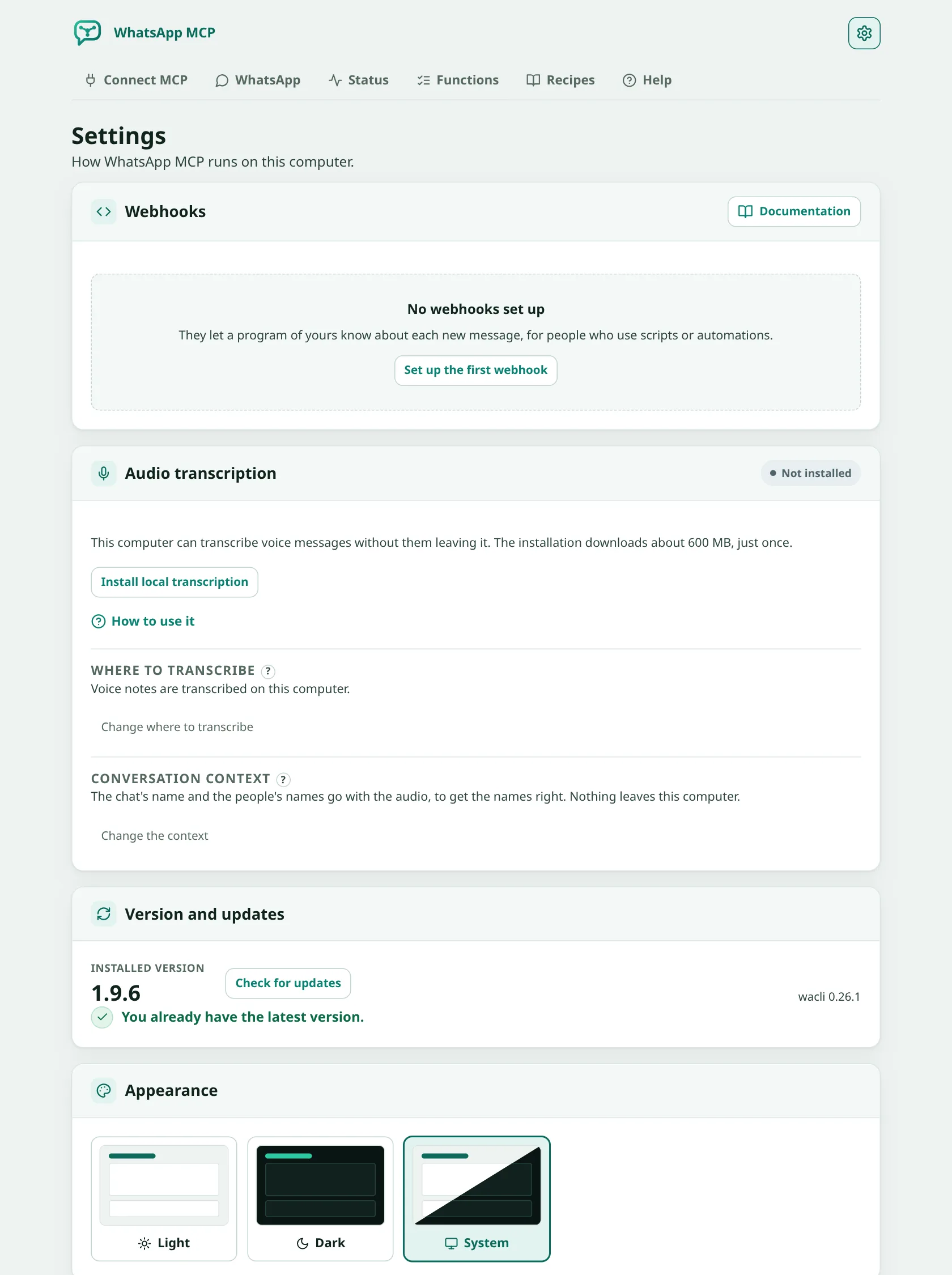
Everything happens on your computer
There’s no server of ours in the middle. The app joins WhatsApp as a linked device, just like WhatsApp Web, keeps the messages on your machine and only answers programs running on it.
Your messages stay with you
What comes in from WhatsApp is stored on your computer. No account to create and no monthly fee.
Voice messages become text right here
When you ask, the voice message becomes text on your own computer, without leaving it. On a Mac with Apple silicon, it takes seconds. If you prefer, send it to a server compatible with the OpenAI API, or to OpenAI with your own key.
It lives in the menu bar
Closing the window doesn’t quit the app. It opens by itself when the computer starts, and the icon shows whether WhatsApp is connected.
It updates itself
Twice a day the app checks for a new version. One click downloads it, checks the file and restarts, already up to date.
Before you install
Use it at your own risk
WhatsApp has no official API for personal accounts. The app uses wacli, an unofficial client, and the account may be disconnected or restricted.
The computer needs to be on
To receive messages, the app needs to be open. If the computer is off for a short while, WhatsApp delivers what was pending when it’s back.
The AI tool runs on this computer
It works with any AI tool that supports MCP and runs on this machine, such as Claude Desktop, Claude Code, Codex and Cursor. claude.ai in the browser and the mobile apps can’t reach your computer; for them, the alternative is running WhatsApp MCP on a server that is always on: the server version.
Frequently asked questions
Could Meta ban my number?
The app, on its own, doesn’t get accounts banned. In practice, a ban comes down to two things: the way the account sends messages and where it connects to WhatsApp from.
The way it sends messages is the first. What leads Meta to ban an account is:
- sending automated messages in bulk;
- sending the same message, over and over, to many contacts;
- sending at a pace no person would, in a way that doesn’t look human.
WhatsApp MCP was made to bring the context of your conversations, like work groups with clients, to your AI tools. It wasn’t made for bulk messaging or for building chatbots. Used for what it was made for, it shouldn’t get you banned or cause trouble with Meta.
The second is where the account connects from, and it has nothing to do with this app. Many numbers get banned because they were linked to unofficial solutions hosted on servers whose internet address (the IP) already has a history of WhatsApp automation. The number ends up paying for that address’s history, even without doing anything wrong.
That’s why we recommend running WhatsApp MCP on your computer. It then uses the same internet you already use WhatsApp from, and to Meta it’s just one more linked device, like WhatsApp Web.
If you need it on 24 hours a day, there’s the server version. Only use it if you know what you’re doing, and make sure the server has never run WhatsApp automations before: an IP with that history can get the number banned.
If you still have doubts, read WhatsApp’s Terms of Service.
Which AI tools does it work with?
With any AI tool that supports MCP and runs on your computer, such as Claude Desktop (chat and Cowork), Claude Code, Codex, Cursor and Windsurf.
Claude Desktop and Claude Code connect with one click in the app. For the others, the app gives you ready-made text: you paste it into the tool’s chat and it sets itself up.
claude.ai in the browser and the mobile apps can’t reach your computer. For them, there’s the server version.
How do I bring in older messages?
When you connect, WhatsApp sends the app part of your recent history, as it does with WhatsApp Web. From then on, everything that comes in is stored on your computer.
To go further back in a chat, ask your AI to fetch its older messages. The app asks your phone, which needs to be online, and the messages arrive bit by bit, from newest to oldest. WhatsApp itself limits how far back you can go.
To get a whole chat, export it from your phone (in the chat’s options, Export chat) and hand the file to your AI.
Does it work with WhatsApp Business?
Yes. It works with regular WhatsApp and with WhatsApp Business: the app joins the account as a linked device, just like WhatsApp Web.
Download WhatsApp MCP Local
Free, for macOS, Windows and Linux.